
How to use the app
This page explains how to use the app, in the order you are likely to need it. The links lead to separate guides with more detail.
Getting started
Install the app from Google Play and sign in with your Google account. The first time, you scroll through the terms of use to the end (ideally, of course, to read them before accepting) and accept them.
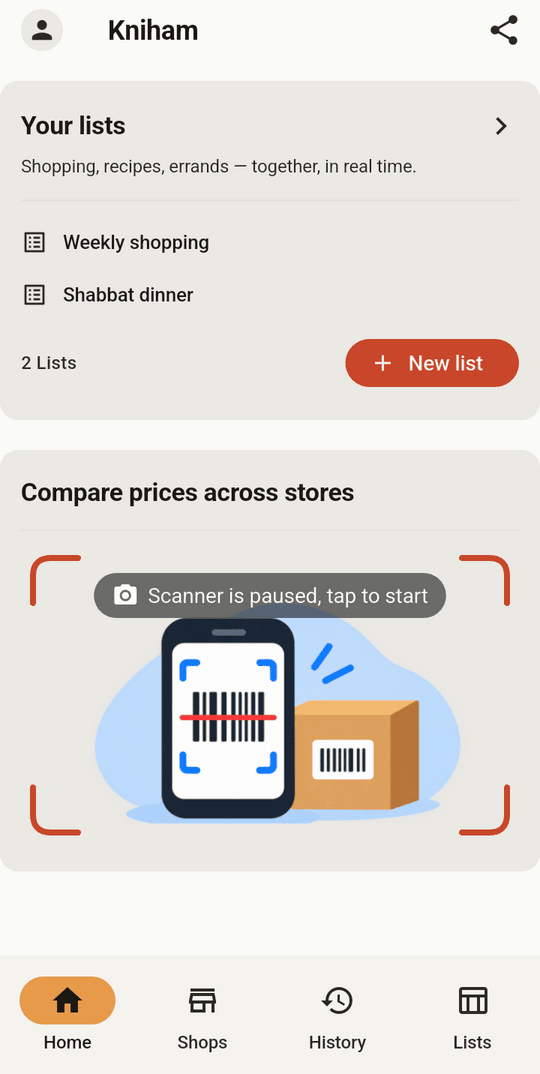
On the "Home" screen your lists are at the top and the price scanner is below them. The bar along the bottom leads to "Home", "Shops", "History" and "Lists".
Creating a list
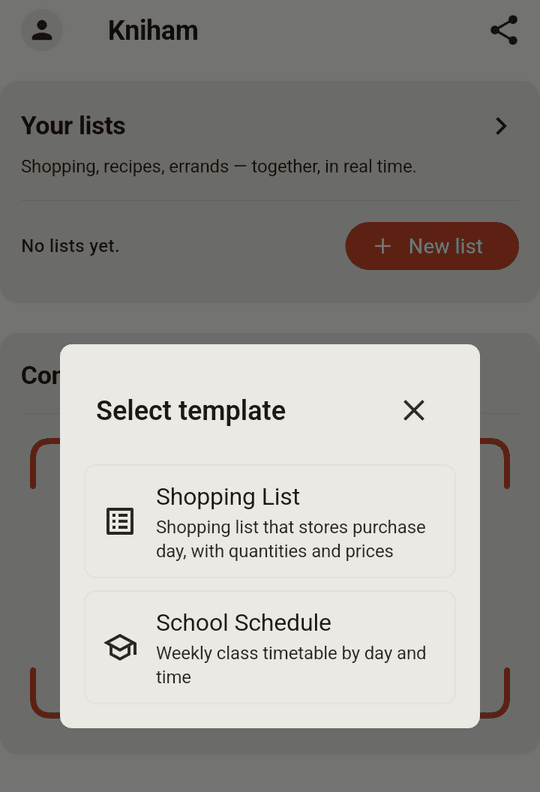
On the "Home" screen press "New list", choose "Shopping List" and type a name. If you leave the name empty, the app chooses one for you. The same window also offers a "School Schedule" template.
Adding items
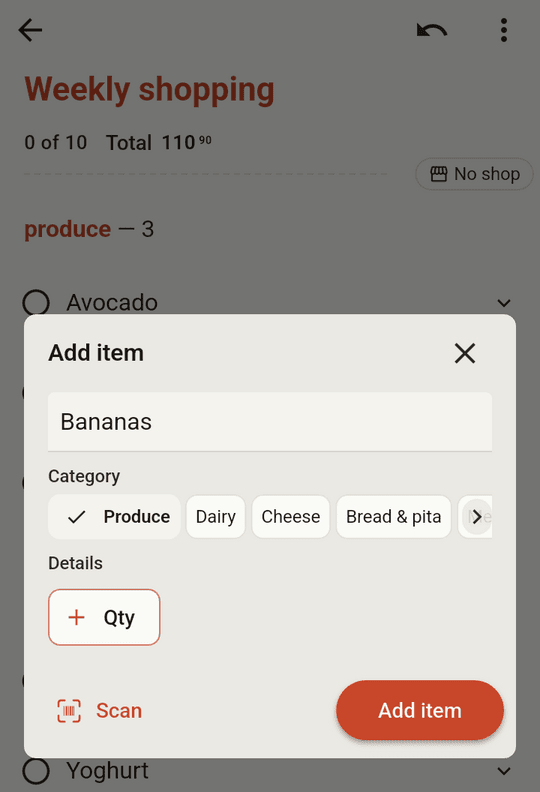
Open the list and press the + button in the corner of the screen. In the window that opens, type the item's name, choose a category and press "Add item". The window stays open for the next item, and the ✕ closes it.
To add a product by its barcode, press "Scan" in that window and point the camera at the barcode. If the app knows the product, it fills in the name. A shop's prices appear only beside scanned items, so scan whatever you can.
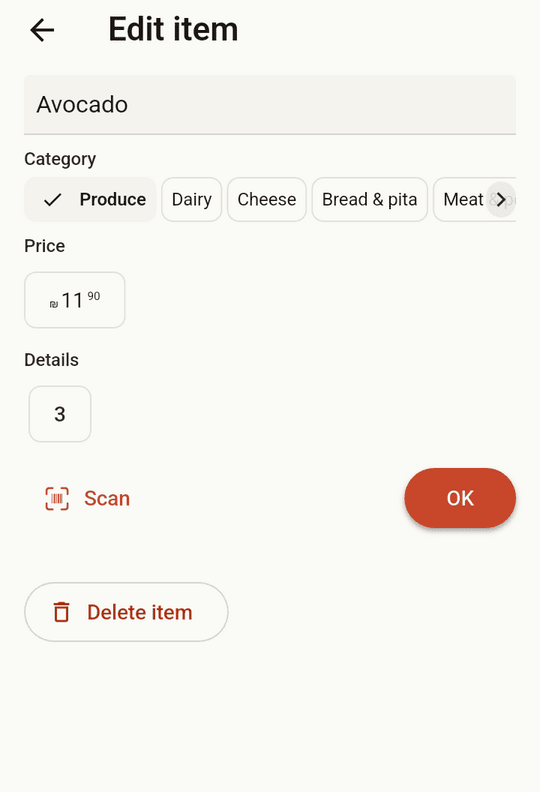
To change an item, tap it and press the edit icon. On that page you can change the name, the category, the quantity and the price. The "Delete item" button there removes the item without asking, and the undo arrow at the top of the list brings it back.
Seeing the prices of your shop
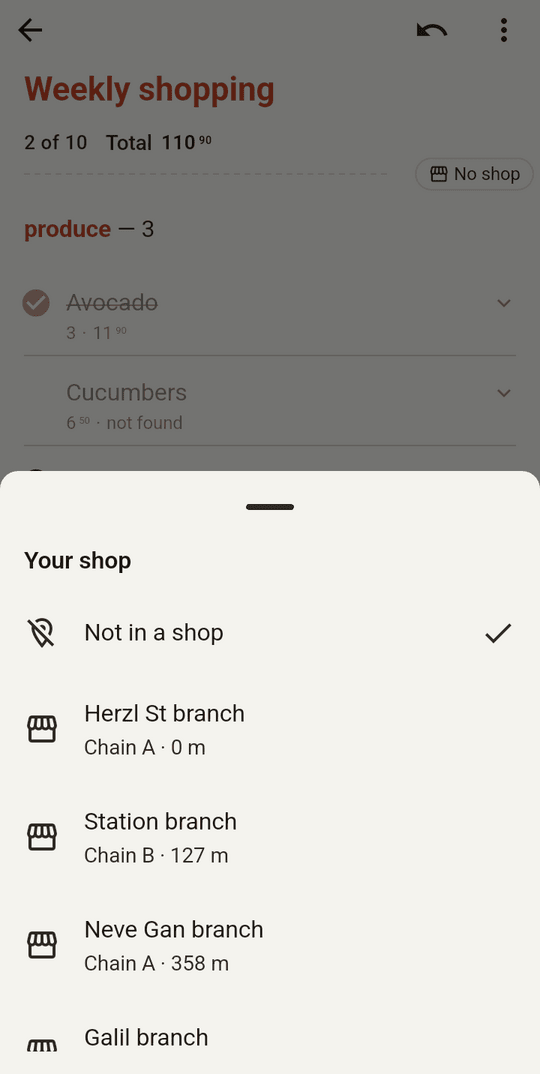
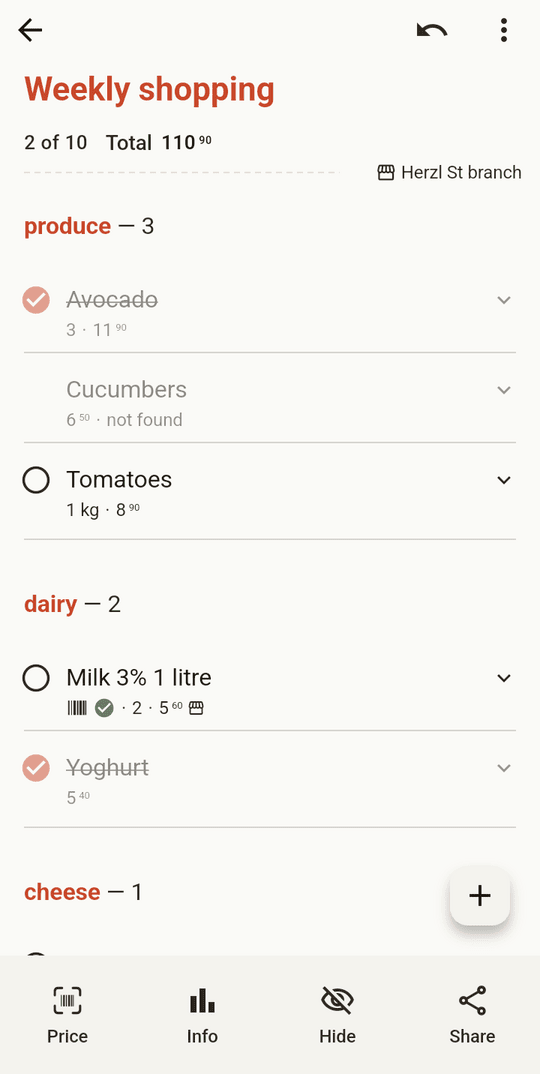
Above the items is a dashed line with the name of your shop, or "No shop" if you have not chosen one. Tap it and pick a shop from the nearby branches. The app can list them only with the location permission. Scanned items then show the price published for that branch, and other items show the price you typed, if there is one.
Your choice lasts three hours, and "Not in a shop" in the same window clears it sooner. The total at the top adds up only the prices you typed. The prices in the app leave out promotions and discounts.
In the shop
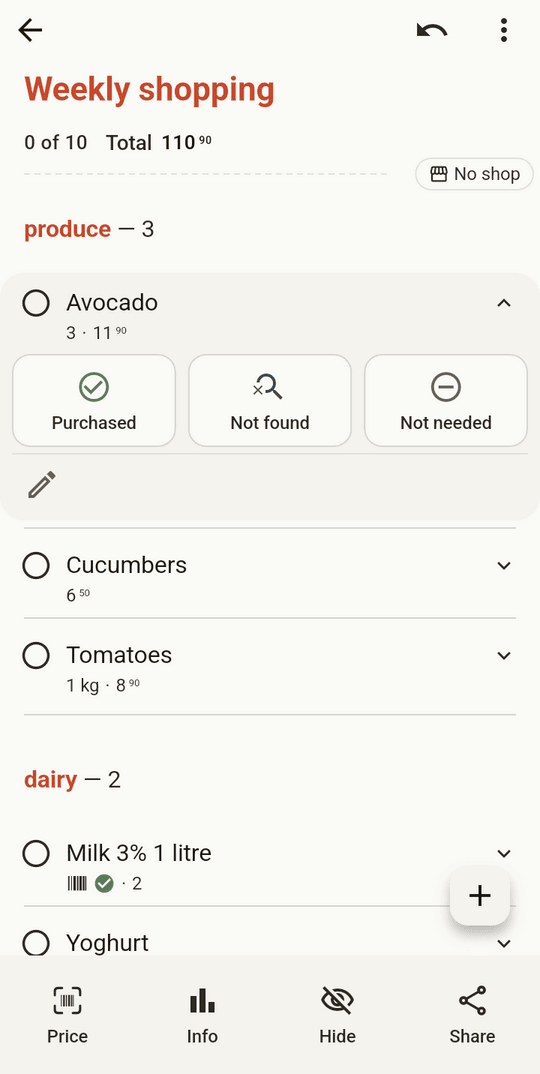
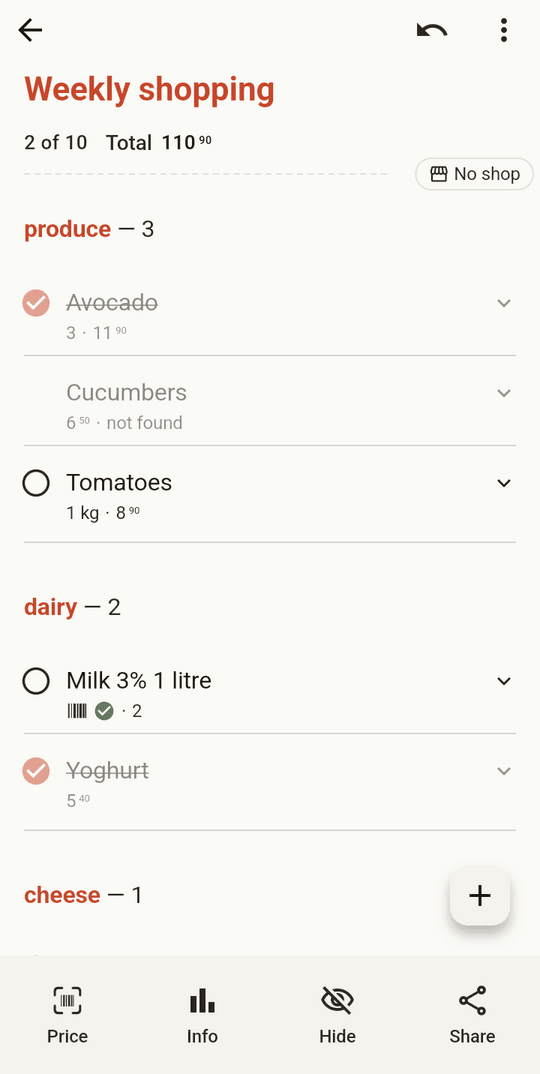
Tap an item and choose "Purchased", "Not found" or "Not needed". Tapping the same choice again returns the item to the list. Each mark means something different, and only "Purchased" goes into the purchase history.
The eye icon on the bar at the bottom of the list hides the items you have dealt with. "Hide" hides what you bought, "Hide all" also hides what was not found or not needed, and "Show" brings everything back.
After the shop
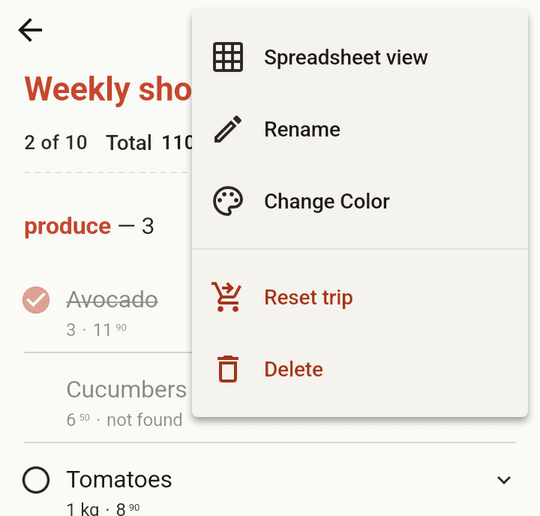
Look at what is still marked "Not found". Then open the menu at the top of the list, press "Reset trip" and confirm. Once every item is marked, a "Reset" button also appears above the items. The marks clear and the items stay, so next week starts from the existing list.
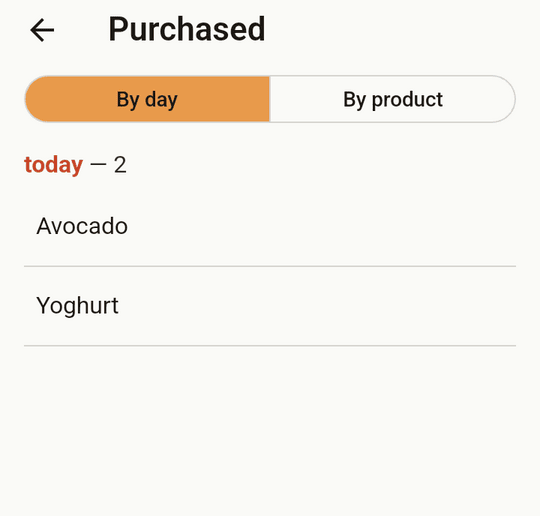
A reset does not change the purchase history. You open it with "Info" on the bar at the bottom of the list, and you can read it by day or by product.
Sharing a list
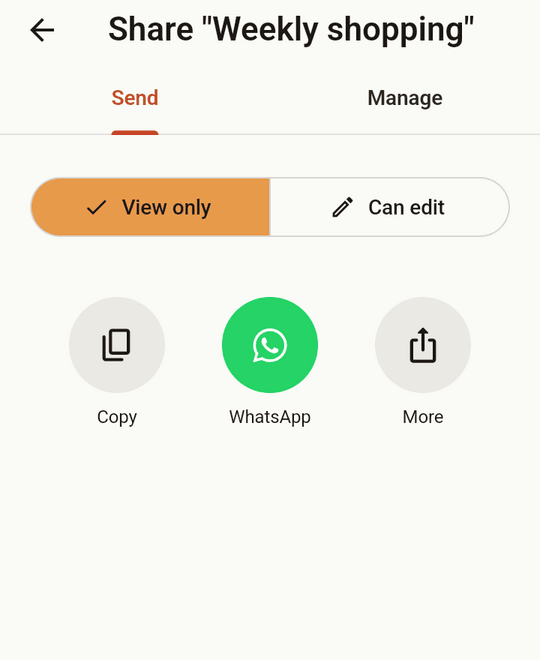
Press "Share" on the bar at the bottom of the list, choose "View only" or "Can edit", and send the link by WhatsApp or however you like. The invitation works even if the other person does not have the app yet. Only the person who created the list can share it, and this needs a connection.
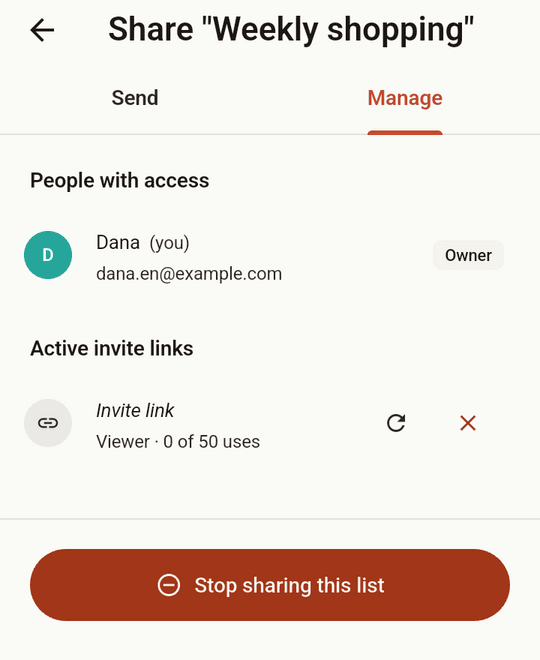
With "Can edit" the person can change the list, and with "View only" they can only look at it. The "Manage" tab shows who has access, and there you can also replace a link or stop sharing. In a shared list one person's changes appear straight away for everyone else.
Checking a price by barcode
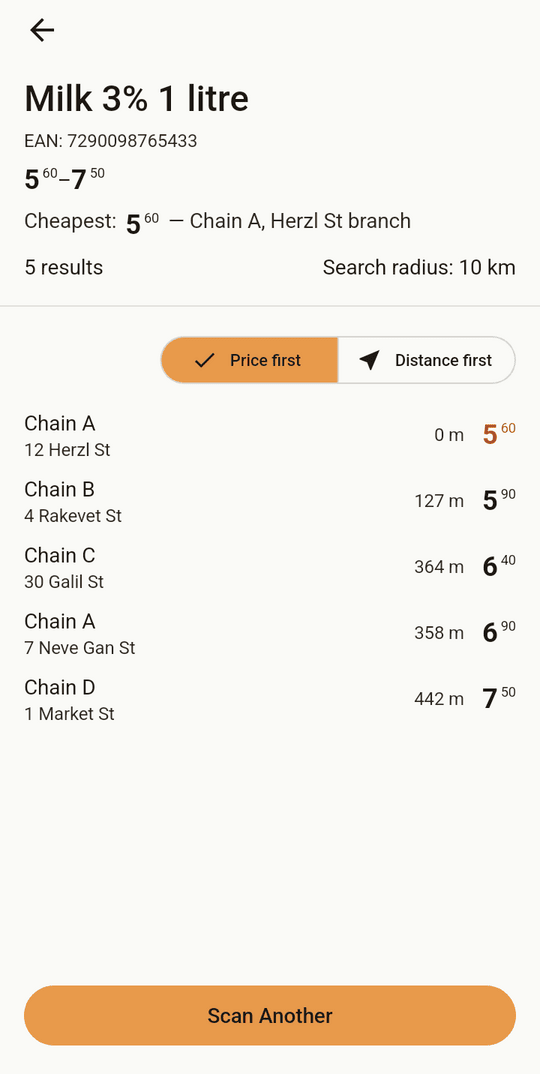
On the "Home" screen tap the scanner and point the camera at a barcode. The result screen shows the product's price at each shop, sorted by price or, when your location is known, by distance. "Scan Another" takes you back to the scanner.
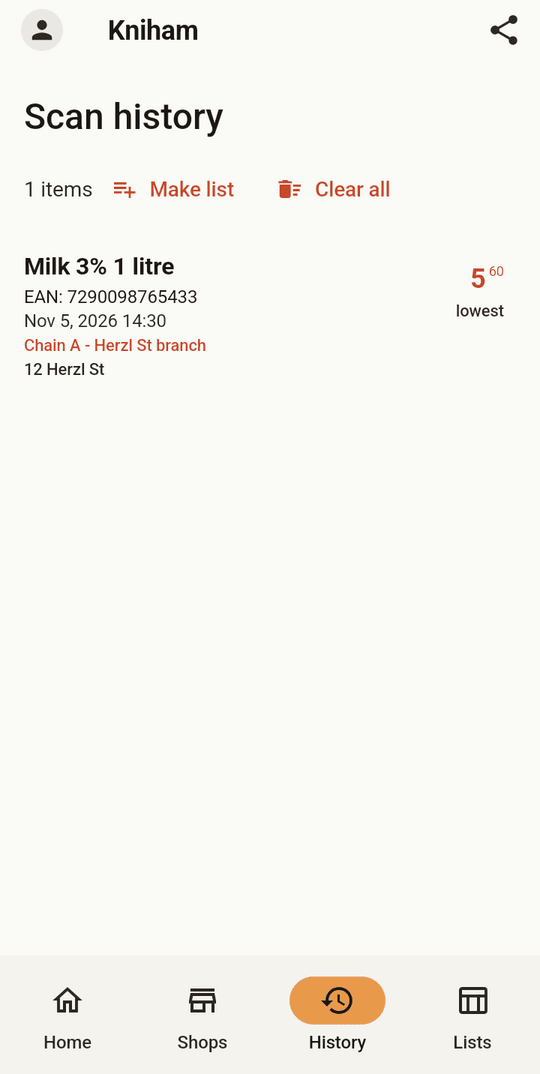
You can also start from inside a list, with "Price" on the bar at the bottom. Products you check this way are kept on the "History" screen, and "Make list" there turns them into a shopping list.
Without a connection
Lists keep working with no signal. You can add, mark and delete items, and the changes go out when the connection returns. A price the phone has not already fetched cannot be shown until then, but the prices of the last three shops you chose stay on the phone for a day.
Your data
What we store has a guide of its own. You can delete your account through the deletion form on this site.
